
Covering an open shift on a Friday afternoon shouldn’t mean sending dozens of texts or starting a group chat. Managers shouldn’t have to scroll through contact lists, hoping someone sees the message in time. Still, many teams handle last-minute gaps this way—informally, without records, and with no certainty the right person will fill the shift.
If you want a shift swap app that doesn’t rely on group texts or sticky notes, Shift Trading in APS Scheduling could be the answer.
In short, Shift Trading lets employees manage their own scheduled shifts. They can release a shift to the open pool for any eligible coworker to claim, hand a shift off directly to a specific coworker, or swap shifts one-for-one with another coworker. Employees can also pick up open shifts if an admin allows it. For handoffs and swaps, the receiving coworker must confirm first. Every option needs a manager or user to give final approval before the schedule changes.
This is a big change from managers having to manually reshuffle schedules or deal with a flood of texts whenever someone needs coverage. Every request, confirmation, and approval happens within the system, creating a complete record of who agreed to what and when.
What is shift trading in APS Scheduling?
Shift Trading is a feature inside the APS Scheduling solution that lets employees manage changes to their own schedule without a manager having to broker every swap by hand. It covers four related but distinct actions:
-
Release
An employee gives up a future shift to the open pool, where any eligible coworker can claim it.
-
Handoff
An employee gives a future shift directly to a specific coworker in the same department.
-
Swap
Two employees in the same department trade scheduled shifts.
-
Pickup
An employee claims an open or released shift—one that's either been released by a coworker or opened up by an admin.
All four options use the same eligibility rules. Employees only see shifts and coworkers that match their department, don’t conflict with their current schedule, and don’t overlap with approved or pending time off. Review our guide to employee time-tracking best practices for full compliance. This logic works automatically in the background, so no one has to check it by hand. It ensures the system only matches people with shifts they are qualified and available to work.
How does each shift trading option work?
Here’s how each option inside the shift trading app works:
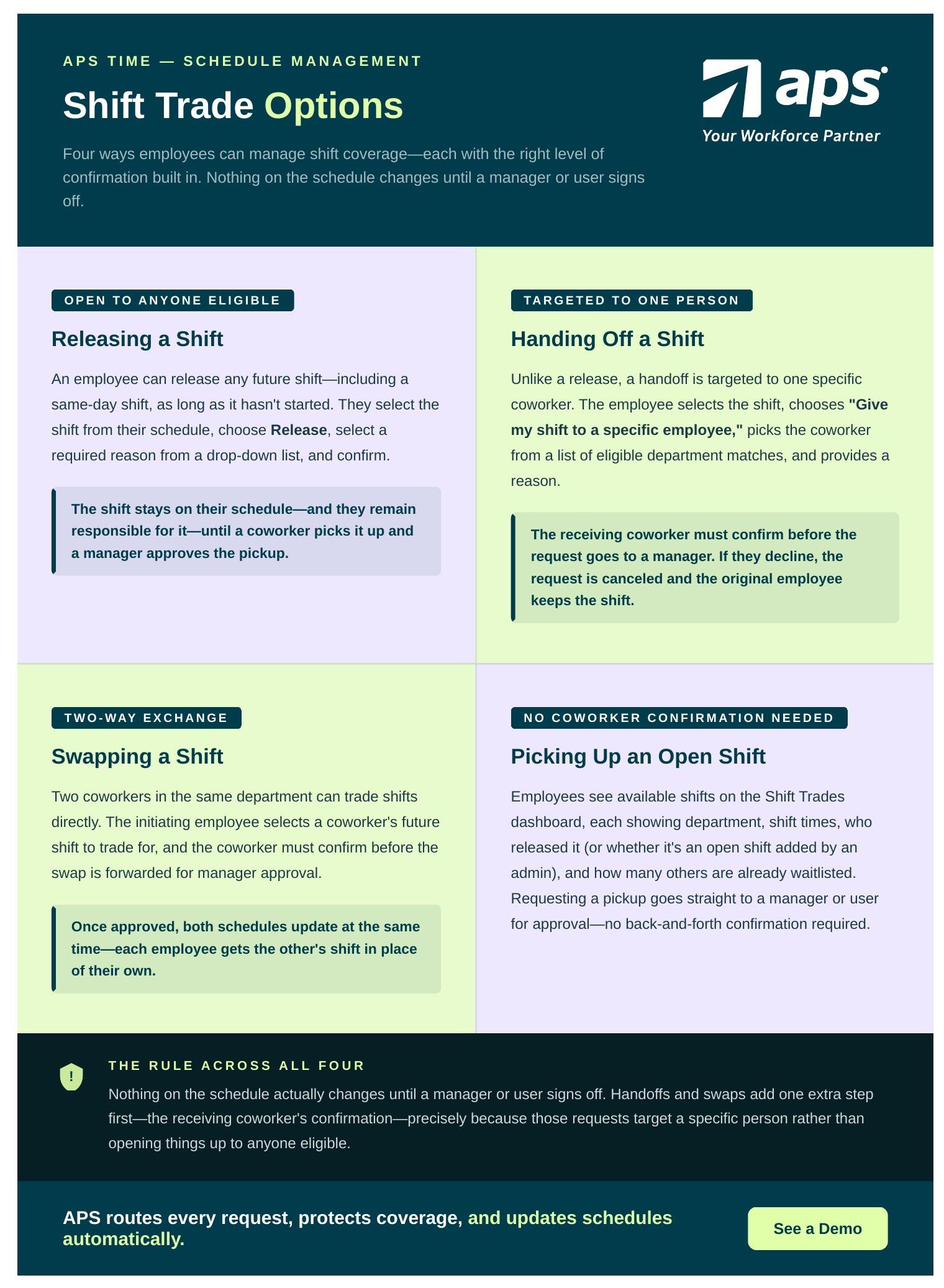
Releasing a shift. An employee can release any future shift, including a same-day shift, if it hasn’t started yet. They select the shift from their schedule, choose Release, select a required reason from a drop-down list, and confirm. The shift stays on their schedule—and they remain responsible for it—until a coworker picks it up and a manager approves the pickup.
Handing off a shift. Unlike a release, a handoff is targeted to one specific coworker. The employee selects the shift, chooses “Give my shift to a specific employee,” picks the coworker from a list of eligible department matches, and provides a reason. The receiving coworker must confirm before the request is sent to a manager for final approval; if they decline, the request is canceled, and the original employee keeps the shift.
Swapping a shift. Two coworkers in the same department can trade shifts directly. The employee who starts the swap selects a coworker’s future shift to trade for, and the coworker must confirm the trade before it goes to the manager for approval. Once approved, both schedules update at the same time, and each employee gets the other’s shift.
Picking up an open or released shift. Employees can view available shifts on the Shift Trades dashboard, which shows details like the department, shift times, who released it, or if it’s an open shift added by an admin, and how many employees are already waitlisted. Requesting a pickup doesn’t need the same back-and-forth confirmation as a handoff or swap. It goes straight to a manager or user for approval.
For all four options, the schedule only changes after a manager or user approves it. Handoffs and swaps have one extra step first: the receiving coworker must confirm, since these requests are sent to a specific person instead of anyone eligible.
How does manager approval work?
Managers need one of two permissions to interact with shift trade requests: the ability to view requests or the ability to view, approve, and deny them. Handoff and swap requests aren’t visible to managers until the receiving employee has confirmed—before then, they exist only between the two employees involved. Release and pickup requests, on the other hand, are visible to managers as soon as they’re submitted.
Each request a manager reviews shows who’s involved, the department, the shift’s date and times, the reason for the request, the requesting employee’s tenure, and informational alerts—for example, if approving the request would push someone into overtime, create a same-day conflict, or assign a shift to someone marked unavailable.
Approving a request updates the relevant schedules automatically and, for releases and open shifts, automatically denies any other pending requests for the same shift. Denying a handoff or swap cancels it for both employees involved; denying a release or pickup simply removes that request while leaving the shift available for someone else to claim.
Why does shift trading outperform manual coordination?
A shift trading app only pays off if it actually gets used, which is why:
-
It removes the "no takers" problem
A shift that depends on someone happening to see a group text or a posted note can sit uncovered right up until it starts. Trading requests go directly to eligible coworkers or a specific chosen person, so coverage doesn't depend on luck or timing.
-
It keeps every trade within the right skill set
Each option—release, handoff, swap, or pickup—is limited to employees in the right department, so shifts don't end up with someone unqualified.
-
It cuts down on disputes
Because every request requires explicit confirmation (from a coworker, and always from a manager), there's far less room for the "wait, who said they'd cover this?" confusion that comes with informal, off-platform arrangements.
-
It keeps a complete audit trail
Every request, confirmation, denial, and approval is logged automatically with timestamps. If questions come up later about who agreed to what, the record is already there, so no one has to piece it together from memory or old messages.
Who benefits from shift trading?
Healthcare teams can fill coverage gaps without sidestepping care protocols, since every trade option stays within the same department and still requires manager sign-off before a schedule change. See our Healthcare Buyer’s Guide for full staffing compliance.
Hospitality teams can maintain service standards during high-demand shifts, whether that means releasing a shift to the broader team when any eligible person will do, or handing it directly to the one coworker trained on a specific station. Read more on overcoming HR challenges in the hospitality industry.
Multi-location operations get a single, consistent, trackable process for shift coverage across every site, rather than separate, ad hoc arrangements at each location that managers have to piece together after the fact.
Enabling shift trading
Shift Trading is disabled by default. Admins turn it on from Admin > Attendance Options > Configure Scheduling Settings, in the Shift Trading card, by checking the Enable employees to trade shifts option. From there, it’s worth deciding whether also to check Allow open shifts to be picked up—a separate setting that determines whether unassigned, admin-released shifts are available for employees to claim, alongside the standard release, handoff, and swap options.
Frequently Asked Questions
Q: What’s the difference between a release, a handoff, and a swap? A release goes to the open pool, where any eligible coworker can claim it. A handoff is targeted to a specific coworker chosen by the employee. A swap is a direct trade—two employees exchange their scheduled shifts. All three require manager approval before the schedule changes; handoffs and swaps additionally require the other employee to confirm first.
Q: Does a manager have to approve every shift trade? Yes. Manager or user approval is required for each option—release, handoff, swap, and pickup—before any schedule is updated. Nothing changes automatically just because a coworker confirmed a handoff or swap.
Q: Where do shift trade requests appear for employees and managers? Employees track their own requests under Shift Trades > My Shift Requests, where each shows a status of Pending Confirmation, Pending, Approved, Canceled, or Denied. Managers can see requests ready for review in the Shift Trades dashboard—release and pickup requests appear immediately, while handoffs and swaps appear only after the receiving coworker has confirmed.
Q: How does shift trading work in an employee scheduling app? Shift trading allows employees to release, hand off, swap, or pick up shifts directly through a mobile app or web portal. When an employee initiates a swap or handoff, the receiving coworker must first confirm the request. Once confirmed, the request routes to a manager for final approval before the official schedule updates.
Q: What is the difference between a shift exchange, handoff, and release? A release opens a shift to all eligible team members in a department. A handoff targets one specific coworker. A shift exchange (or swap) is a two-way trade in which two employees exchange scheduled shifts.
Q: How does automated shift trading prevent overtime? System eligibility logic checks total employee hours, department qualifications, and existing schedule conflicts in real time. Managers receive automatic alerts before approving any trade that would trigger overtime or schedule overlaps.
Shift Trading is available now in APS Scheduling on desktop.